
Booking help
How to book online
Our online booking makes it easy to choose a service, therapist, and time. These quick screenshots point out the buttons that can be easy to miss—especially on a phone.
-
1
Start an individual appointment
Select Individual Appointment to schedule for yourself. The back arrow in the upper-left corner is how you return to the previous screen if you need to change a choice.
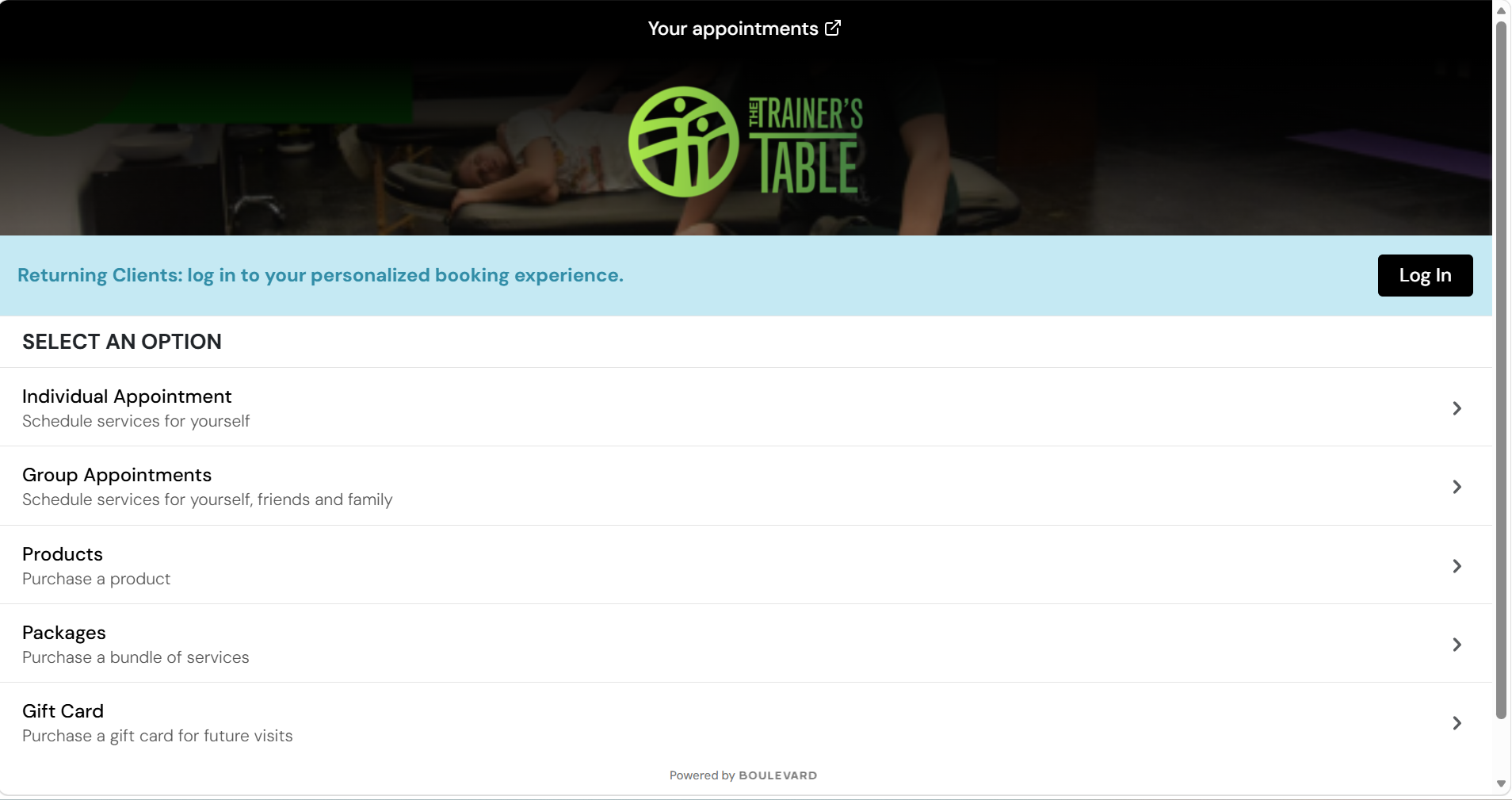
Look here Choose Individual Appointment. -
2
Choose your service
Pick the service and length you want. If you are not sure which one fits, visit our Services page, choose an Ultimate Stretch, or call or text us before booking.
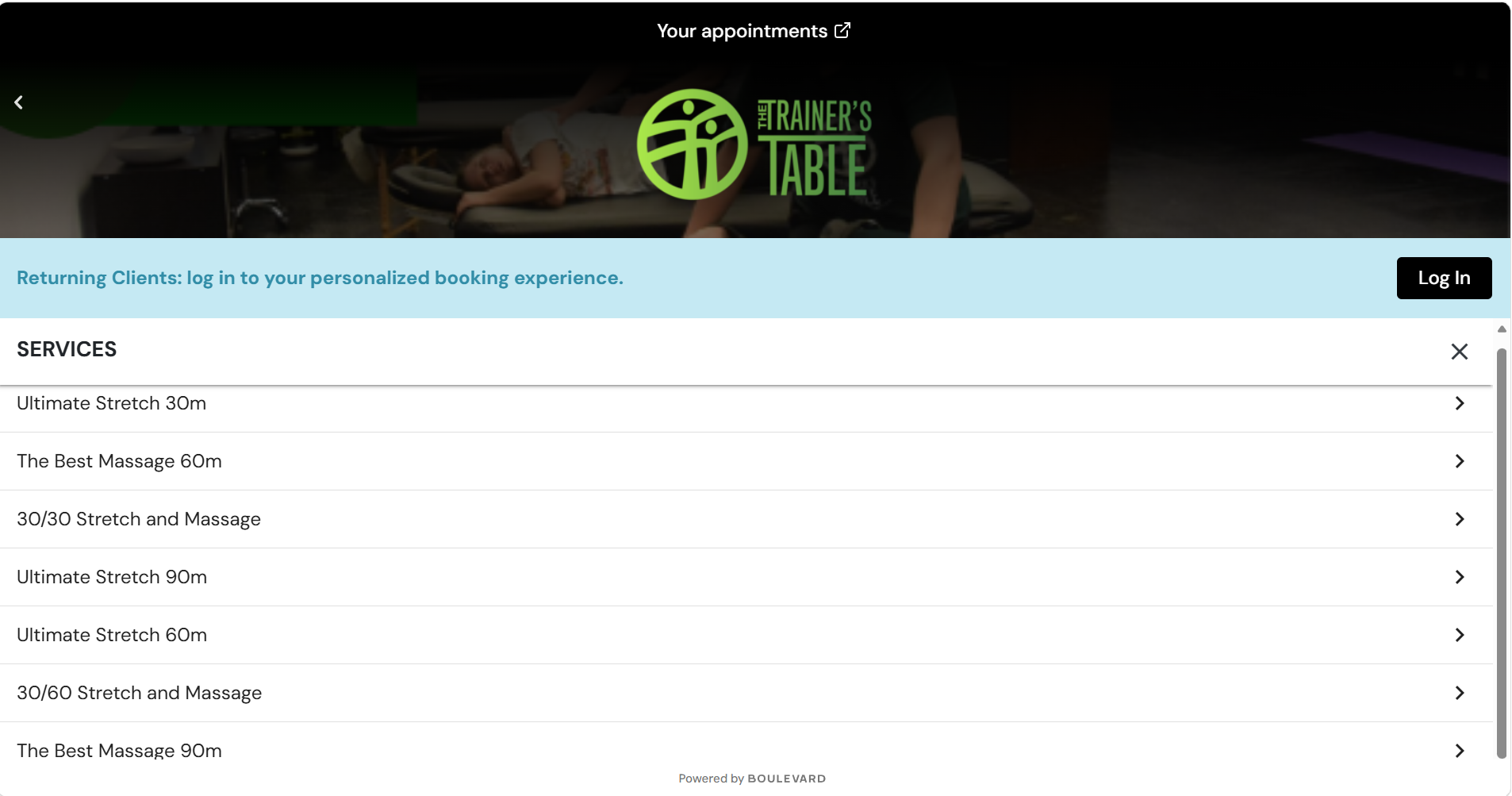
Choose one Select the service you want. -
3
Select a professional
After choosing a service, scroll to the bottom of its description and tap Select a professional. If you do not have a specific therapist in mind, choose First Available for the soonest suitable opening.
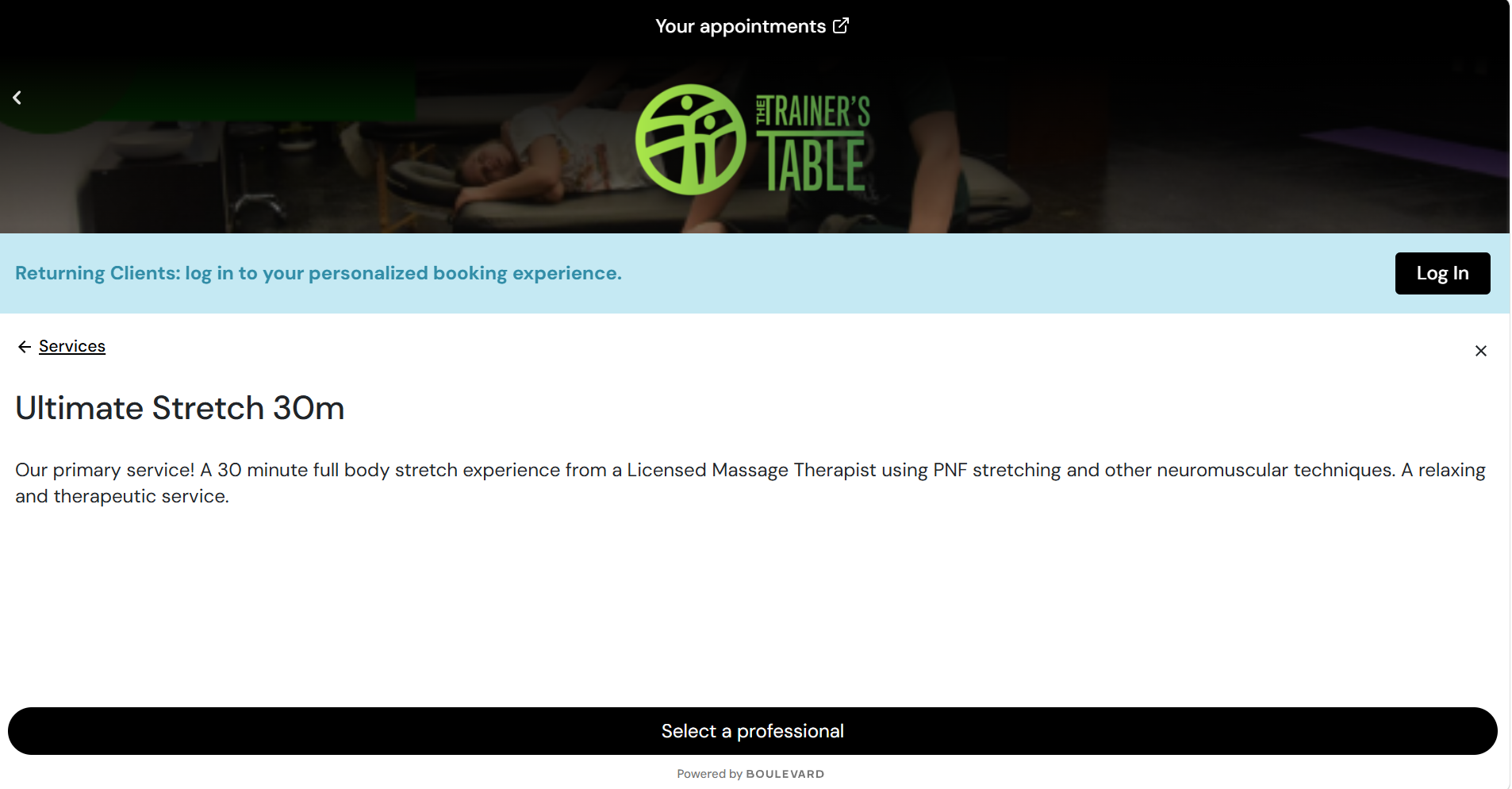
Scroll down The Select a professional button is at the bottom. 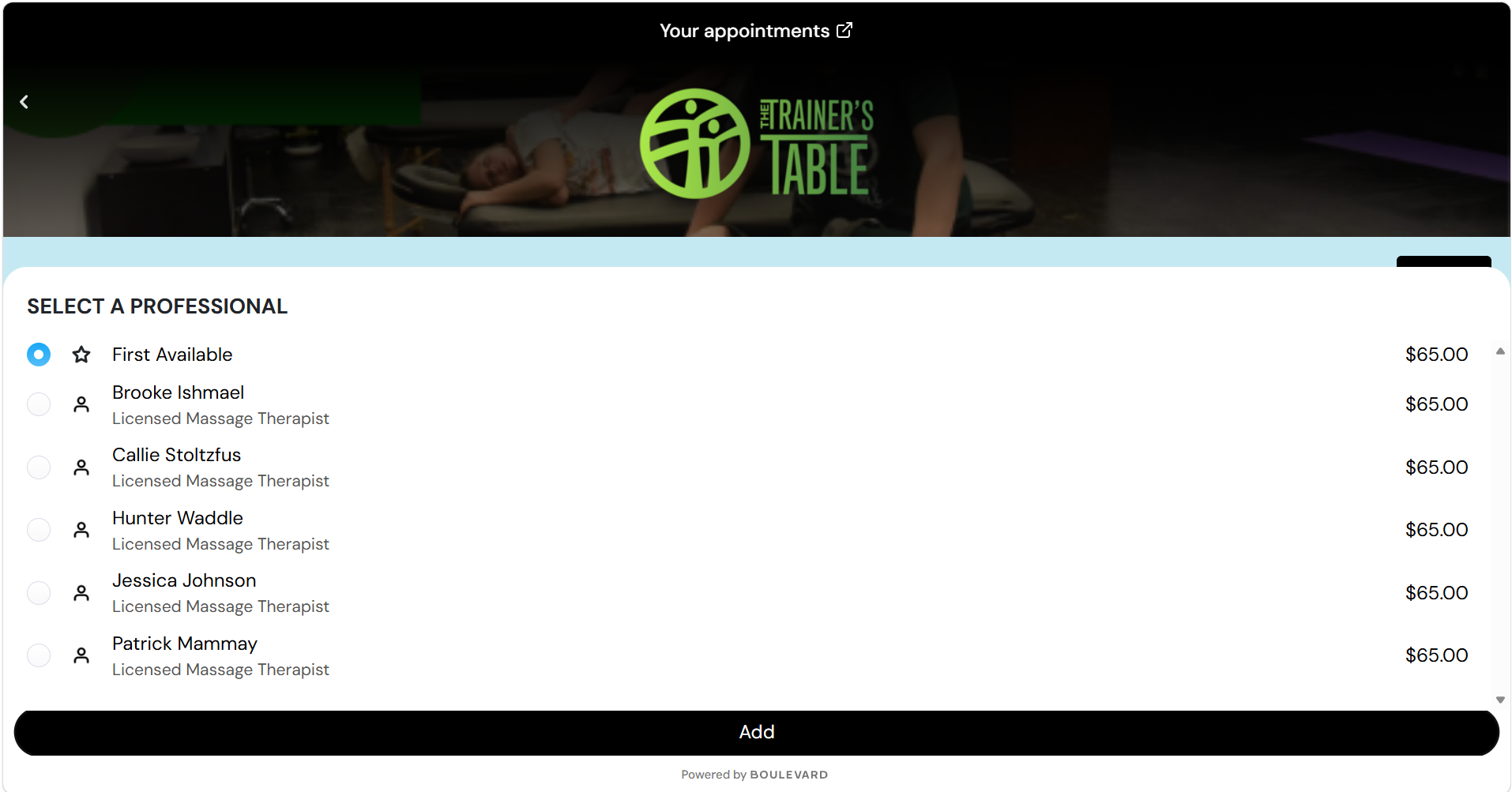
Fastest option Choose First Available for the next opening. -
4
Add it, then choose a time
Tap Add to put the service in your cart. Choose a day, then tap an available time—or choose Join the Waitlist if the times that work for you are gone. The selected time turns black; tap the black confirmation button at the bottom to continue.
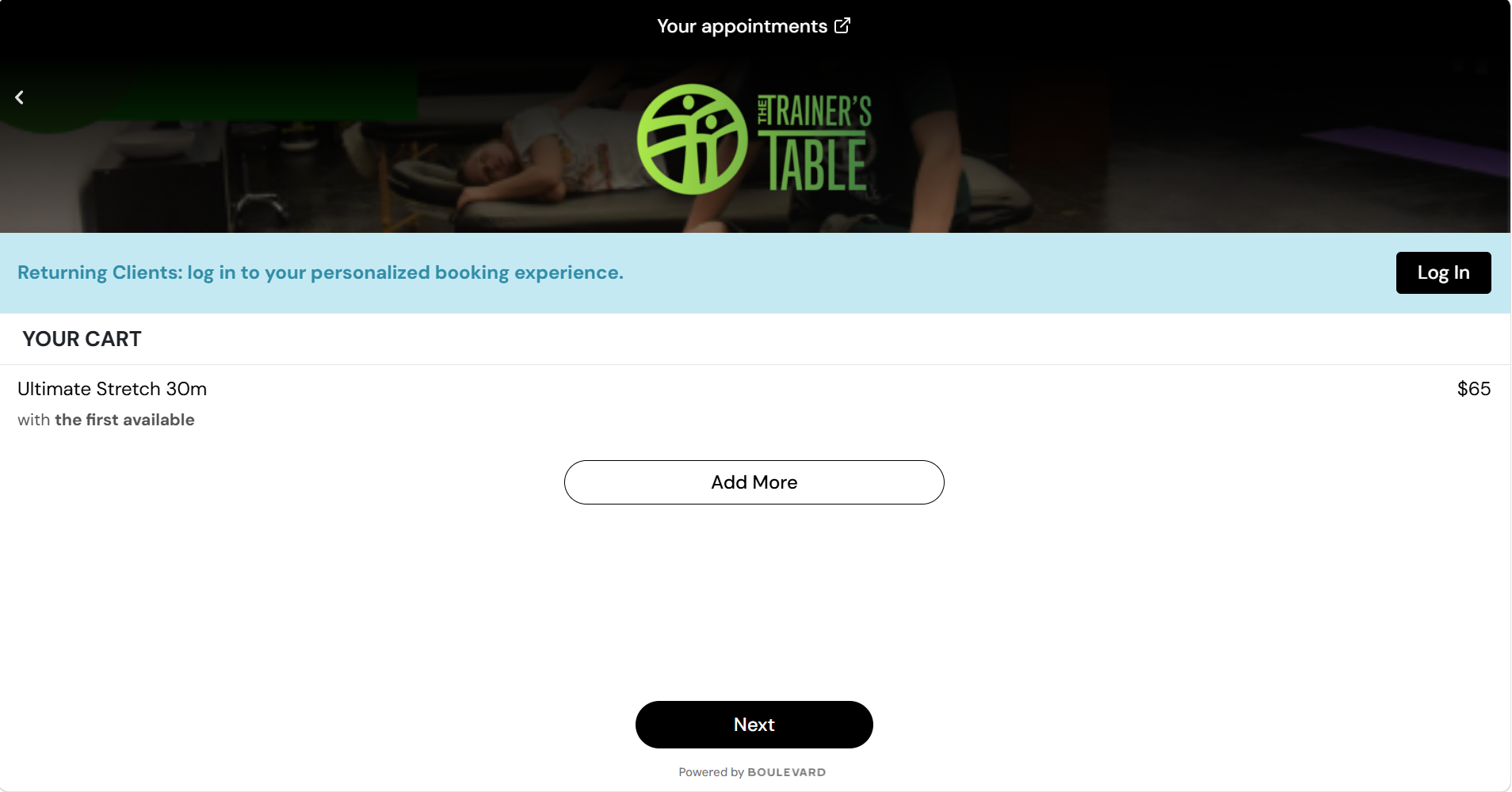
Keep moving Tap Next after confirming your cart. 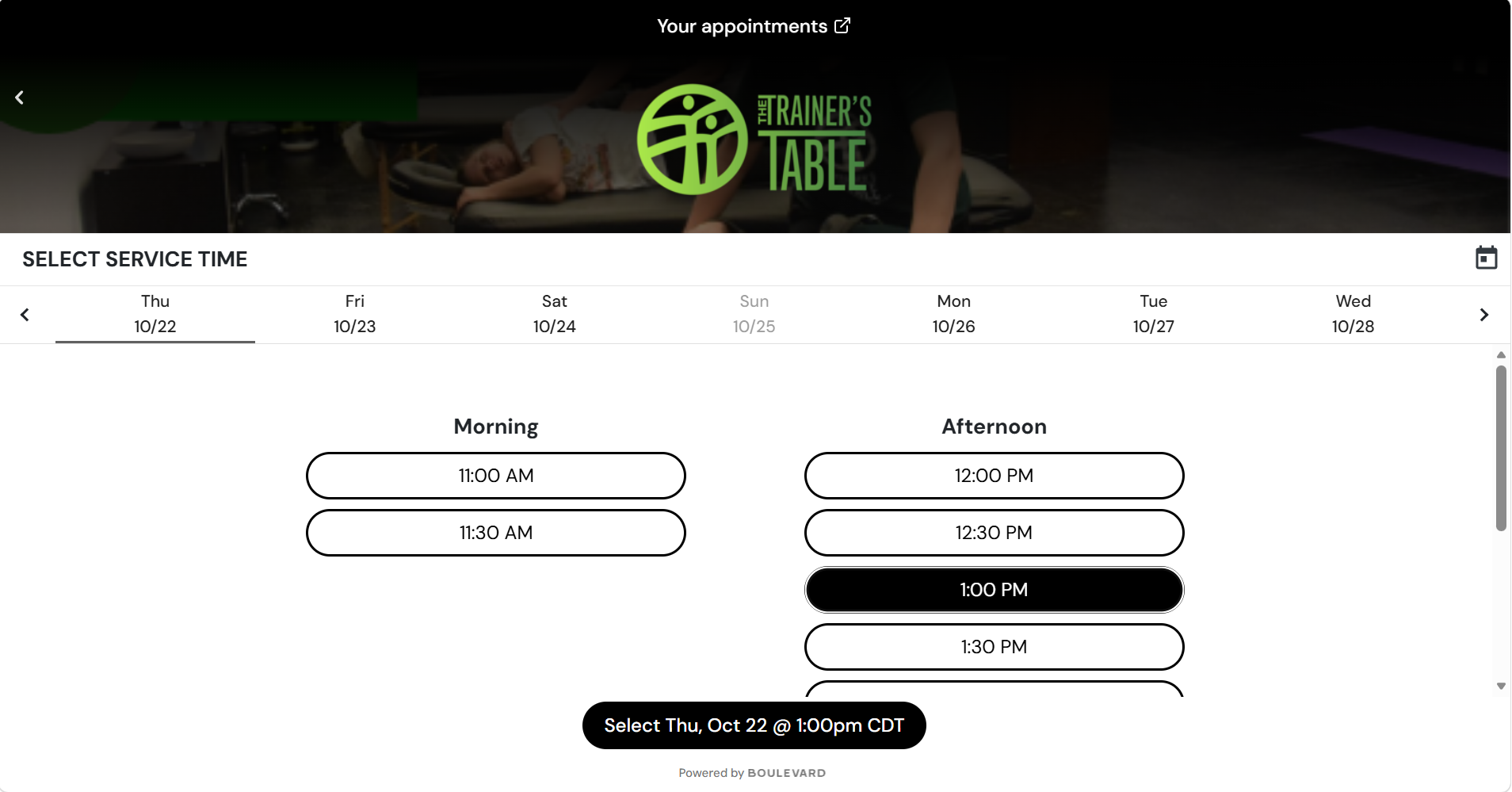
Confirm it Pick a time—or join the waitlist—then tap the black button at the bottom. -
5
Review, create your account, and book
Confirm the date, time, and therapist. Add your information and payment card to hold the appointment; your card is not charged until after your service. At the bottom of the final screen, scroll until you see Book appointment.
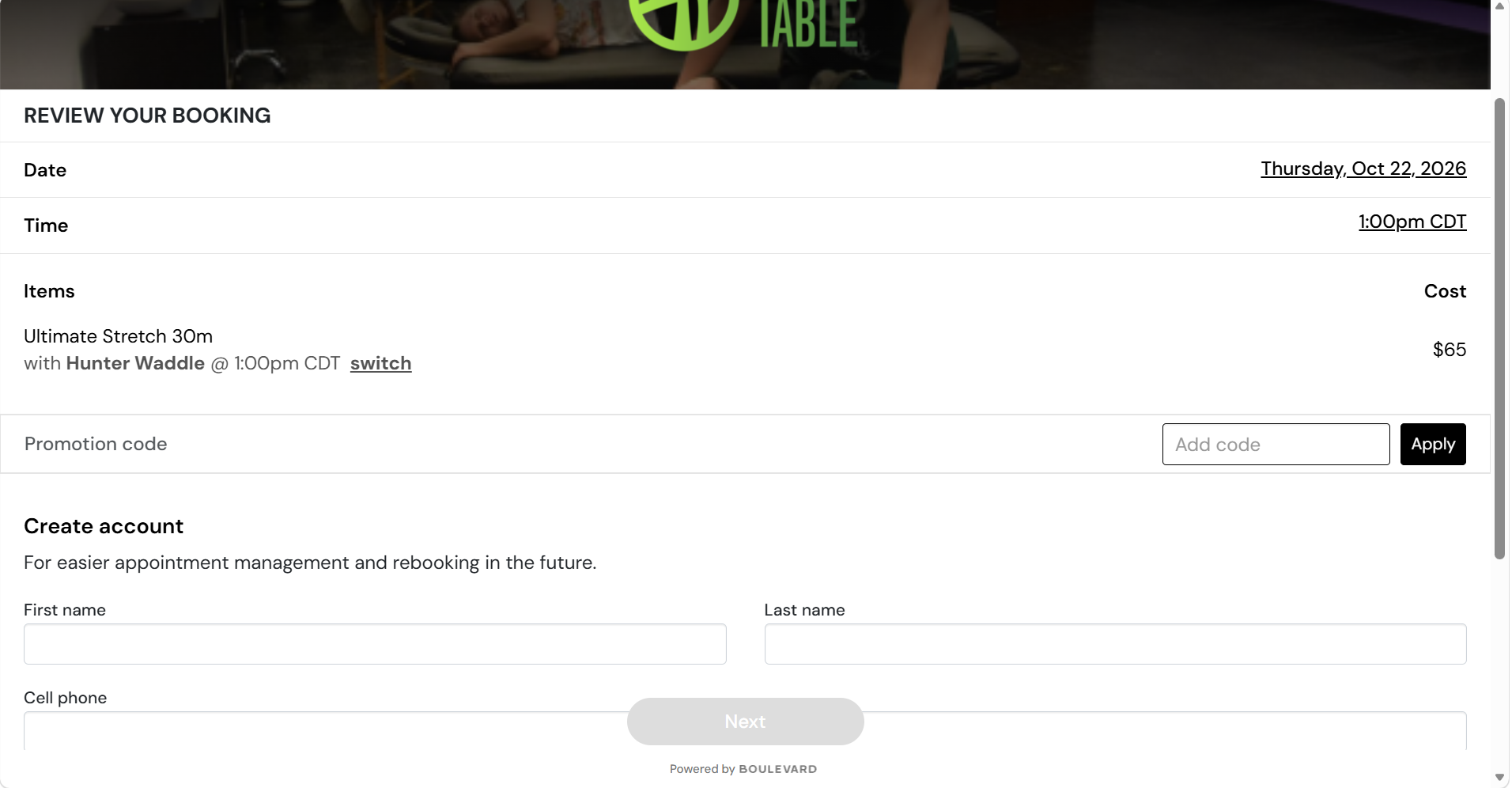
Double-check Review the date, time, service, and therapist. 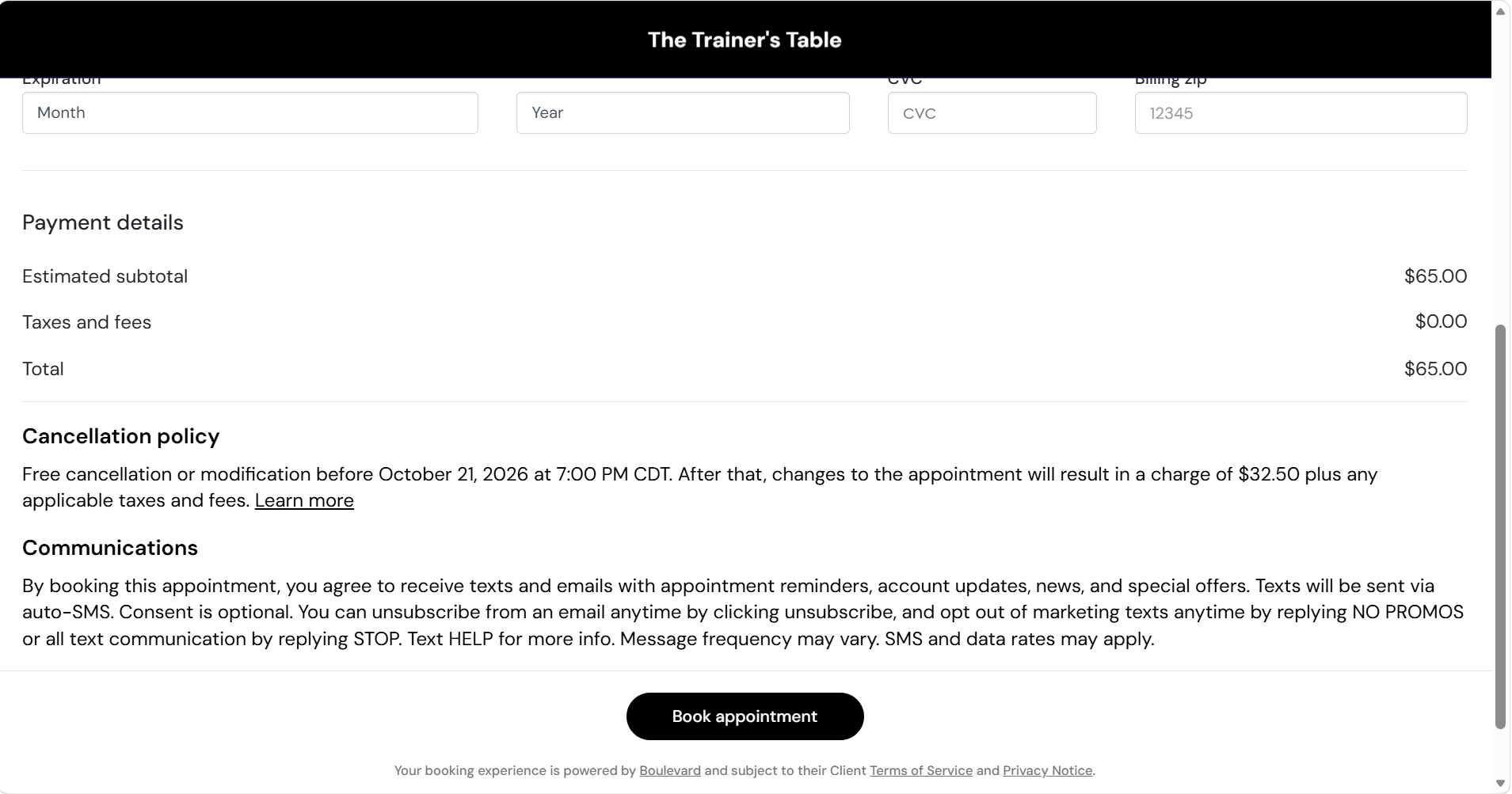
Almost there Scroll down to the final Book appointment button.